
Customize the Windows Right-Click Menu

自定义 Windows 右键菜单

Context Menu X lets you add your own commands to the Windows 11 modern menu and the classic menu — with submenus, icons, launch arguments, variables, and per-file-type rules. Make the right-click menu work exactly the way you do.

Context Menu X 让你把自己的命令添加到 Windows 11 新版菜单经典菜单中 —— 支持子菜单、图标、启动参数、变量以及按文件类型显示的规则, 让右键菜单完全按你的习惯来。

Paid app on Microsoft Store · Free trial available · Windows 10 & 11 微软商店付费应用 · 提供免费试用 · 支持 Windows 10 与 11

Modern + Classic
Menus you can customize
可自定义的菜单类型
Submenus + Icons
Organize entries your way
分组与图标随心组织
Args + Variables
Launch anything with parameters
带参数启动任意程序

Features 功能一览

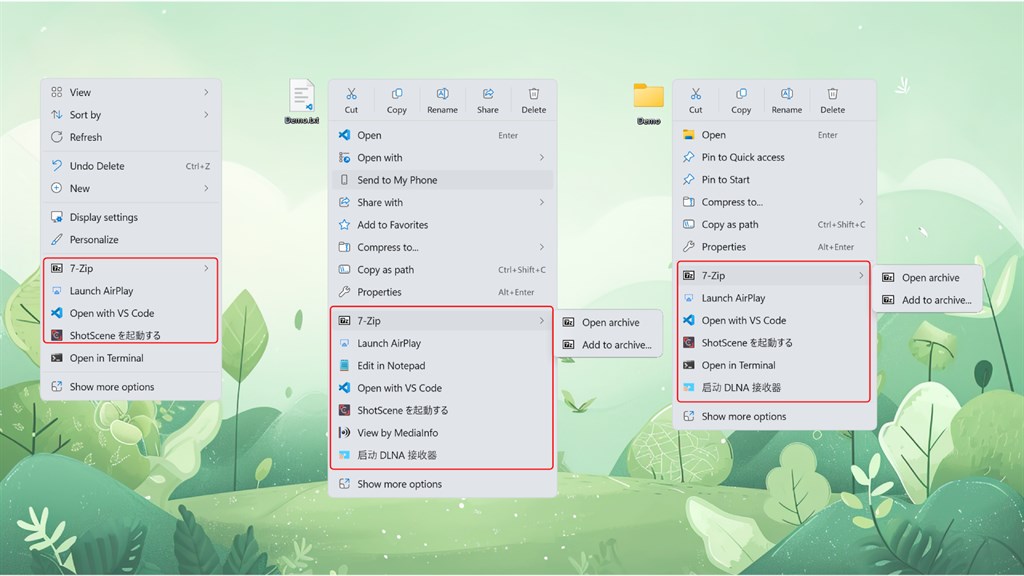
Custom commands shown in the Windows 11 right-click menu, including a nested submenu
Modern & classic 新版与经典菜单

Add your commands to the Windows 11 menu

把你的命令加进 Windows 11 菜单

Your entries appear directly in the modern Windows 11 right-click menu — with their own icons — and in the classic menu under "Show more options". They work on files, folders, the desktop, and empty directory backgrounds.

你添加的命令会带着各自的图标直接出现在 Windows 11 新版右键菜单中,也会出现在「显示更多选项」的经典菜单里。无论是文件、文件夹、桌面还是空白处的目录背景都能用。
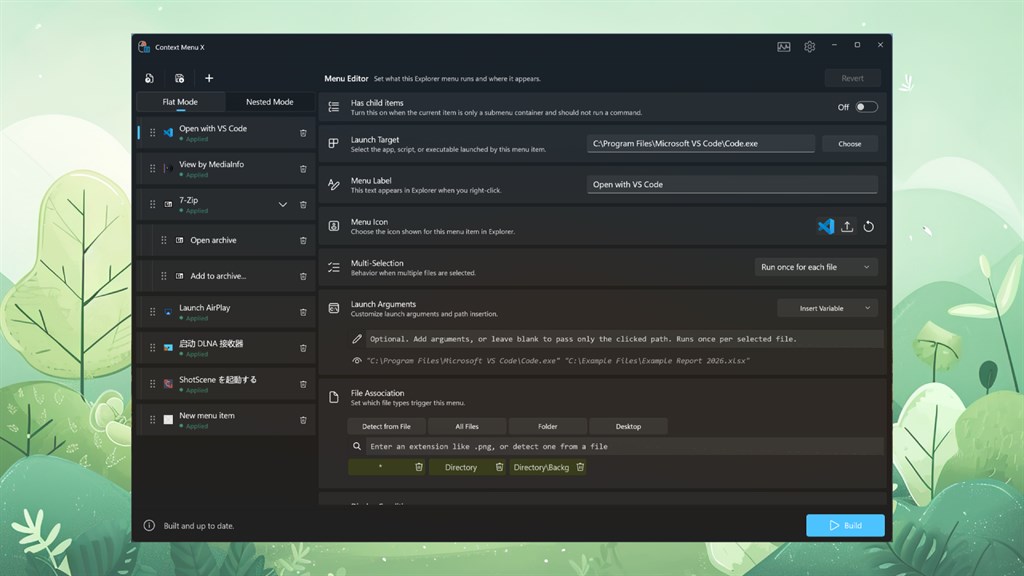
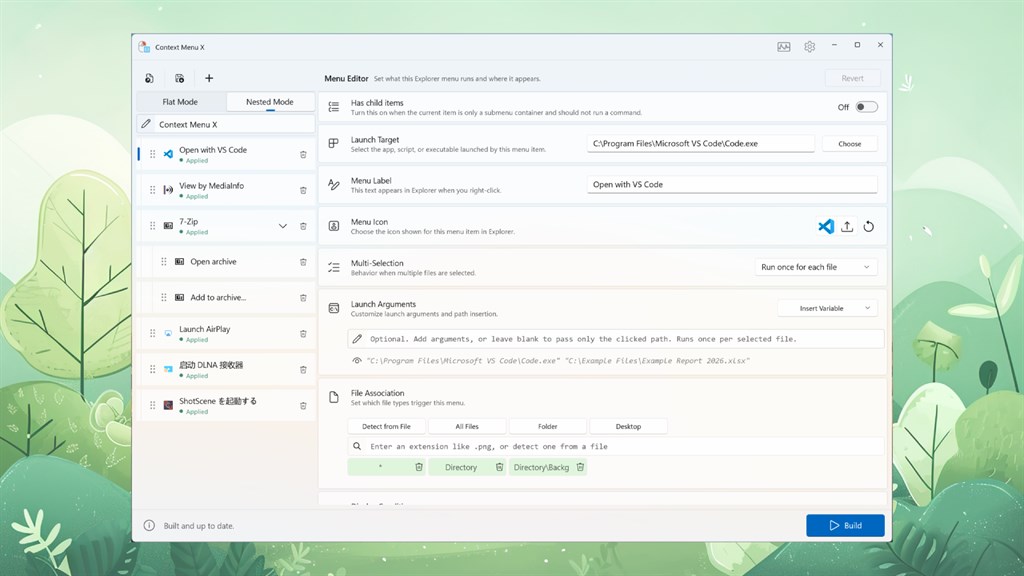
Context Menu X editor: launch target, label, icon, multi-selection, arguments and file-type rules
Full control 精细可控

Launch anything, with arguments & variables

带参数与变量,启动任意程序

For each item set the launch target, label, and icon. Add launch arguments and insert variables like the clicked file or folder path, choose whether to run once or once per selected file, and scope it to a file extension, folder, or the desktop.

为每个菜单项设置启动目标、名称和图标;添加启动参数并插入「点击的文件 / 文件夹路径」等变量,选择多选时「整体运行一次」还是「每个文件各运行一次」,并按扩展名、文件夹或桌面来限定显示范围。

Nested Mode editor with a light theme, organizing menu items into a tree of submenus
Tidy it up 整理菜单

Flat or nested — and light or dark

扁平或嵌套,明暗双主题

Keep commands flat at the top level for one-click access, or group related actions into nested submenus to reduce clutter. Drag to reorder, and switch the editor between light and dark themes to match your setup.

既可以把命令平铺在顶层一键直达,也可以把相关操作收进嵌套子菜单,让菜单更清爽。支持拖拽排序,编辑器还能在明暗主题之间切换,贴合你的使用习惯。

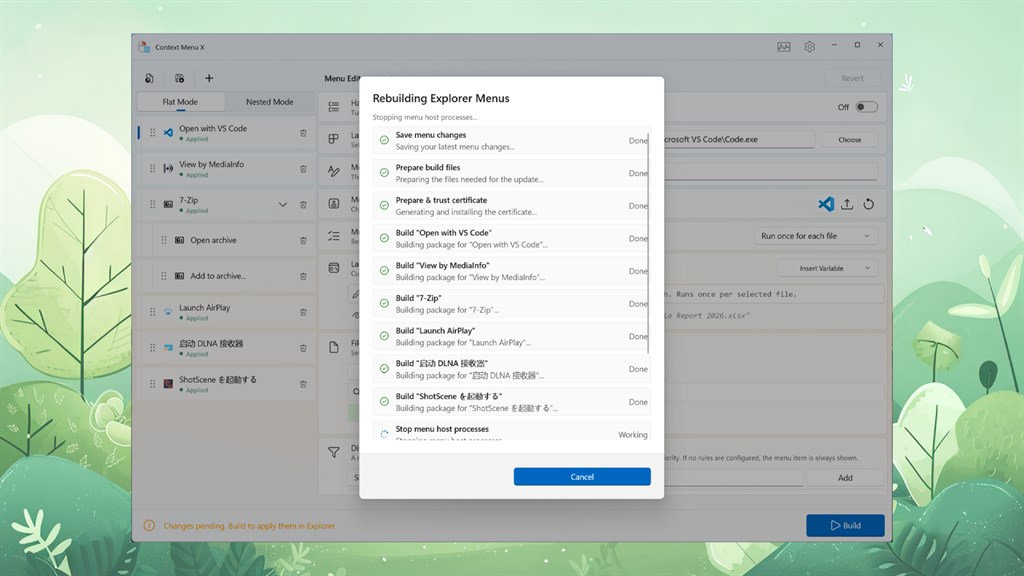
One-click Build dialog packaging menu changes and applying them to File Explorer
Apply instantly 一键生效

Build once, see it in Explorer

一键 Build,立刻出现在资源管理器

When your menu looks right, hit Build. Context Menu X packages the changes, handles the certificate, and refreshes Explorer so your entries show up immediately — no manual registry edits or scripts required.

菜单调整好后点一下 Build,Context Menu X 会自动打包改动、处理证书并刷新资源管理器,让你的菜单项立即生效 —— 无需手动改注册表,也不用写脚本。

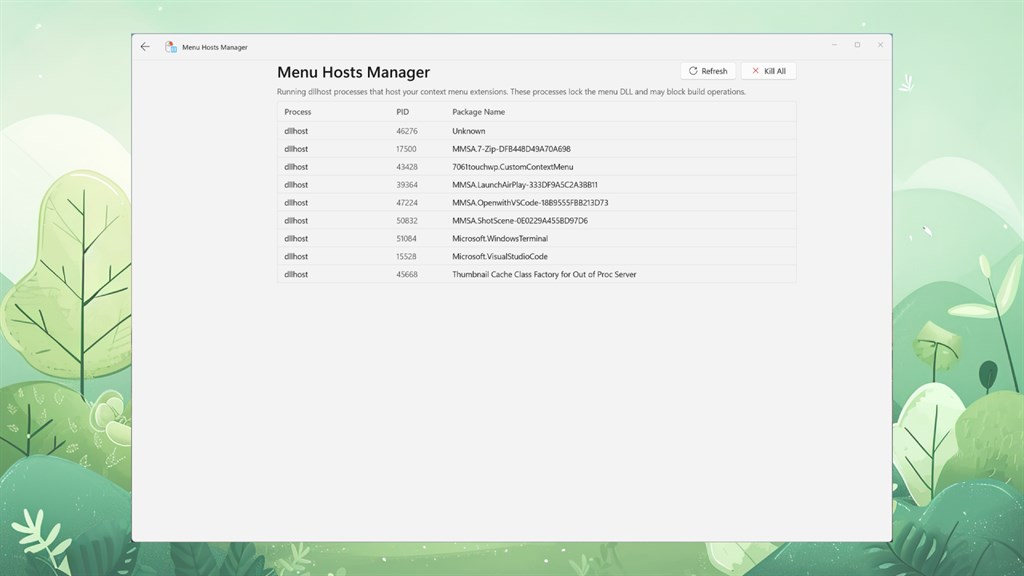
Menu Hosts Manager listing dllhost processes that lock the context menu, with a Kill All action
No more locked menus 告别菜单占用

Menu Hosts Manager

菜单宿主进程管理

Sometimes Windows keeps the menu component loaded in dllhost processes, which can block an update. The built-in Menu Hosts Manager lists them and lets you stop them in one click so your Build always completes cleanly.

有时 Windows 会把菜单组件加载在 dllhost 进程中,从而阻碍更新。内置的「菜单宿主管理」会列出这些进程,让你一键结束它们,确保每次 Build 都能顺利完成。

Customize in 3 Steps 三步完成自定义

Install & open

安装并打开

Get "Context Menu X" from the Microsoft Store (free trial available) and launch the editor.

在微软商店获取「Context Menu X」(提供免费试用),打开编辑器。

Add your items

添加菜单项

Create entries with a label, icon, launch target, arguments, and rules for where they appear. Group them into submenus if you like.

新建菜单项,设置名称、图标、启动目标、参数以及显示规则,按需收进子菜单。

Build to apply

Build 应用

Click Build — your custom commands appear in the right-click menu right away.

点击 Build,自定义命令立刻出现在右键菜单中。

What People Add 大家都加了什么

🧑‍💻 Open in your editor

🧑‍💻 用编辑器打开

Right-click any file or folder and open it in VS Code, a terminal, or your favorite tool — with the path passed in automatically.

右键任意文件或文件夹,直接在 VS Code、终端或你常用的工具中打开,路径自动作为参数传入。

🗜️ Compress / extract

🗜️ 压缩 / 解压

Add a 7-Zip submenu with "Open archive" and "Add to archive" so archiving is one right-click away.

添加一个 7-Zip 子菜单,包含「打开压缩包」「添加到压缩包」,压缩解压一键直达。

🚀 Launch apps & scripts

🚀 启动应用与脚本

Kick off your own scripts, batch jobs, or apps and feed them the selected file as an argument.

启动自己的脚本、批处理或应用,并把所选文件作为参数传给它们。

🧹 Trim the clutter

🧹 精简菜单

Move rarely-used actions into nested submenus to keep the top-level menu short and fast.

把不常用的操作收进嵌套子菜单,让顶层菜单更短、更快。

📂 Folder-only tools

📂 仅文件夹工具

Scope commands so they only show for certain extensions, folders, or the desktop — no noise where it doesn't belong.

限定命令只在特定扩展名、文件夹或桌面显示,不相关的地方就不出现,保持清爽。

🔁 Batch on many files

🔁 批量处理多文件

Select several files and choose to run your command once for all of them, or once per file.

选中多个文件后,可选择对全部「整体运行一次」,或「每个文件各运行一次」。

System Requirements & Specs 系统要求与规格

Platform
运行平台
Windows 10 (1809+), Windows 11
Menus supported
支持的菜单
Windows 11 modern context menu and the classic (legacy) menu
Windows 11 新版右键菜单与经典(旧版)菜单
Targets
作用对象
Files (by extension or all files), folders, desktop, directory background
文件(按扩展名或全部)、文件夹、桌面、目录空白背景
Per-item options
单项选项
Label, icon, launch target, launch arguments with variables, multi-selection behavior, submenu nesting, visibility rules
名称、图标、启动目标、带变量的启动参数、多选行为、子菜单嵌套、显示规则
Themes
主题
Light and dark
明亮与暗色
Price
价格
Paid app on Microsoft Store · free trial available · price set by Store and varies by region
微软商店付费应用,提供免费试用;价格由商店按地区设置,以商店实际显示为准

Frequently Asked Questions 常见问题

What is Context Menu X? 这是一款什么应用?

It's a Windows 10 / 11 app that lets you customize the right-click (context) menu in File Explorer — add your own commands, organize them into submenus, give them icons, and control when they appear.

这是一款 Windows 10 / 11 应用,让你自定义资源管理器中的右键菜单:添加自己的命令、收纳进子菜单、设置图标,并控制它们何时出现。

Does it work with the new Windows 11 right-click menu? 支持 Windows 11 新版右键菜单吗?

Yes. Your custom entries appear directly in the modern Windows 11 menu, with icons, and it can also customize the classic menu shown under "Show more options".

支持。你的自定义项会带图标直接出现在 Windows 11 新版菜单中,同时也能自定义「显示更多选项」里的经典菜单。

Can I pass arguments to the programs I launch? 可以给启动的程序传参数吗?

Yes. Each item has a launch target and optional arguments. Insert variables like the clicked file or folder path, and choose to run once for all selected files or once per file.

可以。每个菜单项都有启动目标和可选参数,可插入「点击的文件 / 文件夹路径」等变量,并选择对所选文件「整体运行一次」或「每个各运行一次」。

Can I show items only for certain file types or folders? 能只在特定文件类型或文件夹显示吗?

Yes. Scope each item with file-association rules — by extension, all files, folders, the desktop, or the directory background — so the command only appears where it makes sense.

可以。用文件关联规则为每个项限定范围:按扩展名、全部文件、文件夹、桌面或目录背景,让命令只在合适的位置出现。

Why is there a "Build" step? 为什么需要「Build」这一步?

Windows hosts context-menu extensions in packaged components. Build packages your changes, applies them to Explorer, and refreshes the menu. The built-in Menu Hosts Manager can stop the dllhost processes that lock the menu so the update completes cleanly.

Windows 将右键菜单扩展放在打包组件中。Build 会打包你的改动、应用到资源管理器并刷新菜单。内置的「菜单宿主管理」可结束占用菜单的 dllhost 进程,让更新顺利完成。

How much does it cost? 这款应用收费吗?

It's a paid app on the Microsoft Store with a free trial so you can try it before buying. Final pricing is set by Microsoft Store and varies by country / region — please refer to the Store page for the current price in yours.

这是一款微软商店付费应用,提供免费试用,可先试再买。最终售价由微软商店按国家 / 地区定价,以商店页面显示为准。

Get it from Microsoft Store 在微软商店获取

Available on Windows 10 and Windows 11. Free trial available before purchase. 支持 Windows 10 与 Windows 11;购买前可先免费试用。