
AirPlay Receiver for Windows & Xbox

屏幕镜像接收器 — Windows 与 Xbox 的 AirPlay 投屏

Wirelessly mirror the screen and audio of your iPhone, iPad, or Mac to a Windows 10 / 11 PC or Xbox console — in up to 4K, 60 FPS with low latency. Built for movies, gaming, presentations, and live streaming.

iPhone / iPad / Mac画面和声音无线投射到 Windows 10 / 11 电脑或 Xbox 主机,最高支持 4K 60 帧,低延迟同步。 适用于观影、游戏、演示和直播等多种场景。

4.2 / 5 on Microsoft Store · 24 ratings · Free trial available 微软商店评分 ★ 4.2 / 5 · 24 条评价 · 提供免费试用

4K · 60 FPS
Maximum mirrored output
最高投屏画质
Windows + Xbox
Native receiver platforms
原生接收端平台
iPhone · iPad · Mac
All AirPlay-capable senders
所有 AirPlay 发送端

Features 功能一览

AirPlay Receiver mirroring an iPhone screen on Windows
One-tap mirroring 一键投屏

Mirror iPhone, iPad & Mac to your PC

把 iPhone / iPad / Mac 投到电脑上

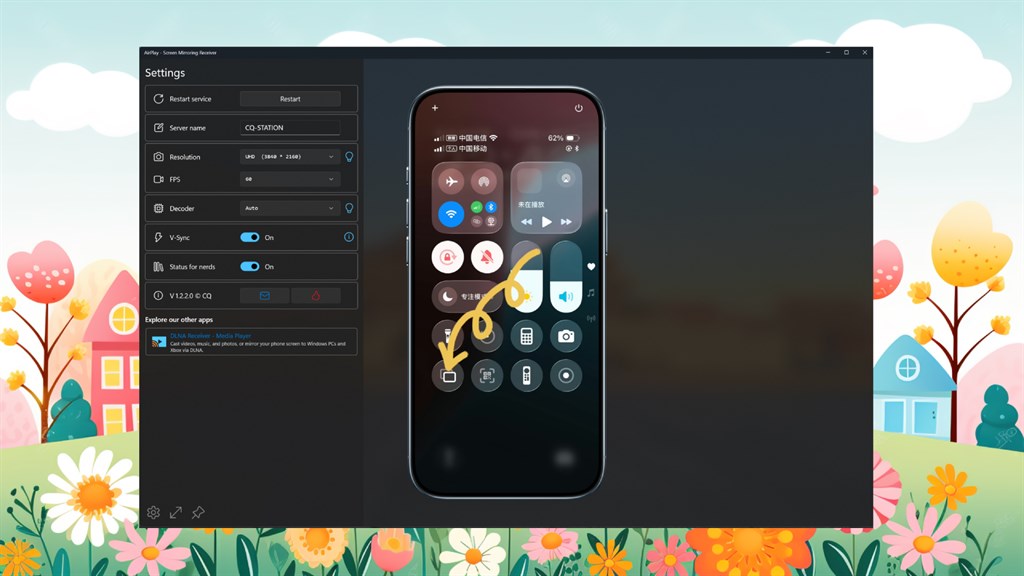
Open Control Center on any AirPlay-capable Apple device, tap Screen Mirroring, and pick your PC. Both video and audio stream over Wi-Fi with no cables and no extra app on the phone.

在任意支持 AirPlay 的 Apple 设备上打开「控制中心」,点击「屏幕镜像」,选择你的电脑即可。画面与声音通过 Wi-Fi 无线传输,手机端无需安装任何应用。

Receiver settings panel — resolution, frame rate and theme options
Tune it your way 画质随心调

Up to 4K at 60 FPS — pick what fits your network

最高 4K 60 帧,按网络选最合适的档位

Choose between 720p, 1080p, 2K, and 4K, paired with 30 or 60 FPS. Drop the resolution on a busy Wi-Fi for rock-solid latency, or push it to 4K/60 for cinematic playback on a wired LAN.

分辨率可在 720p / 1080p / 2K / 4K 间切换,帧率支持 30 / 60 FPS。Wi-Fi 拥挤时降低档位换取稳定低延迟,有线网络下可拉满 4K 60 帧获得影院级画质。

Mirrored iPad display in dynamic fullscreen mode
Cinematic fullscreen 沉浸式全屏

Dynamic fullscreen, no black bars

动态全屏,没有黑边

When the sender rotates between portrait and landscape, the receiver scales fluidly so the mirrored screen always fills as much of your display as possible. Great for movies, slides, and game streams.

发送端横竖屏切换时,接收端会平滑缩放,让画面始终最大限度填满显示区域。无论看电影、放幻灯片还是游戏直播都更沉浸。

Always-on-top floating window with mirrored content
Always in sight 始终在眼前

Always-on-top floating window

悬浮小窗,随时置顶

Keep the mirrored screen pinned in a corner while you work, chat, or browse. Resize freely, and the window stays above other apps — perfect for following a tutorial or a video call.

把投屏画面以小窗形式钉在屏幕一角,工作、聊天、浏览的同时也能随时看到。窗口大小可自由调整,并始终位于其他应用之上 —— 跟着教程做、或边开会边看都很顺手。

AirPlay receiver running on Xbox
Living room ready 客厅大屏体验

Native on Xbox Series X|S and Xbox One

原生支持 Xbox Series X|S 与 Xbox One

Turn your console into a giant AirPlay screen — perfect for sharing iPhone photos with the family, watching a stream from iPad, or showing off a mobile game on the TV. For best stability we recommend wired Ethernet on the Xbox.

把主机变成客厅里的大屏 AirPlay 接收器:和家人一起看 iPhone 照片、用 iPad 投放直播、把手游搬上电视都很合适。Xbox 端建议使用有线网络以获得最佳稳定性。

How to Mirror in 3 Steps 三步开始投屏

Install on Windows or Xbox

安装到 Windows 或 Xbox

Get "AirPlay - Screen Mirroring Receiver" from the Microsoft Store (free trial available) and launch the app.

在微软商店获取「AirPlay - Screen Mirroring Receiver」(提供免费试用),然后打开应用。

Join the same network

连接同一局域网

Make sure your iPhone / iPad / Mac and the Windows PC or Xbox are on the same Wi-Fi or wired LAN.

确保 iPhone / iPad / Mac 与 Windows 或 Xbox 处于同一 Wi-Fi 或局域网中。

Tap Screen Mirroring

开启屏幕镜像

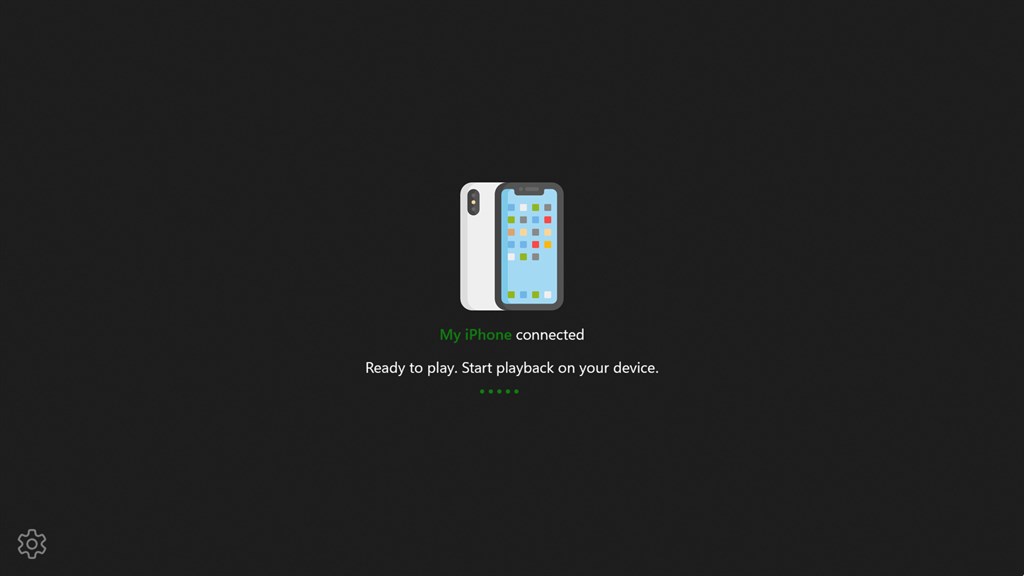
From iPhone Control Center, tap "Screen Mirroring" and pick your PC or Xbox from the list.

在 iPhone「控制中心」点击「屏幕镜像」,在列表中选中你的电脑或 Xbox 即可。

Use Cases 典型使用场景

🎬 Watch on the big screen

🎬 大屏观影

Cast iPhone video to a 4K monitor or TV connected to your PC / Xbox for a cinema-style experience.

把 iPhone 上的视频投放到与 PC / Xbox 相连的 4K 显示器或电视,享受影院级体验。

📊 Wireless presentations

📊 无线演示

Move freely during meetings — present slides, demos, and prototypes from iPad without cables.

摆脱线缆束缚,无线演示 iPad 上的幻灯片、产品 Demo 与原型。

🎮 Mobile game streaming

🎮 手游大屏直播

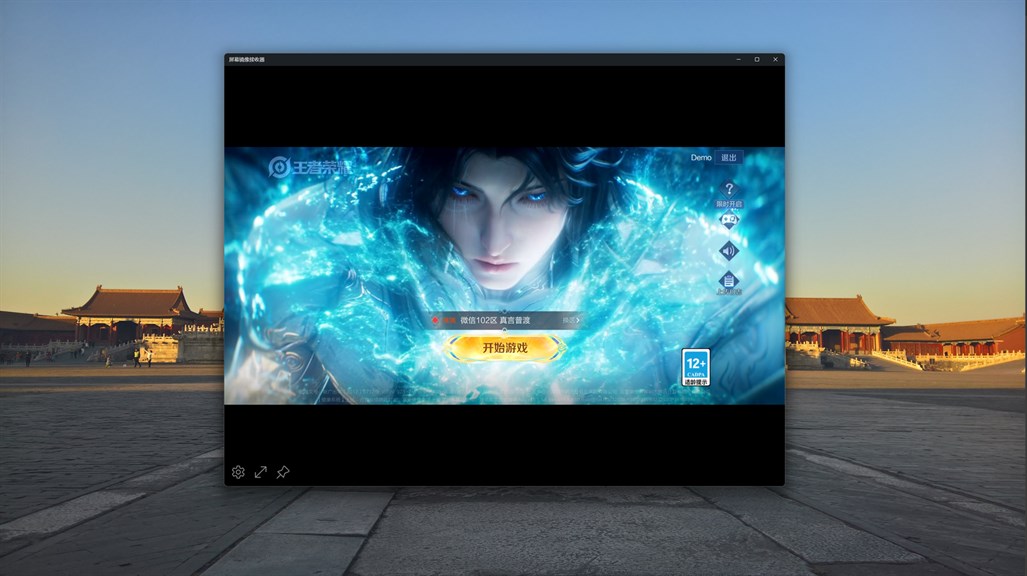
Mirror mobile games to your PC, then capture or stream with OBS for content creation.

把手游画面投到电脑上,配合 OBS 等工具进行录制或直播创作。

👨‍👩‍👧 Share photos & videos

👨‍👩‍👧 家庭照片视频分享

Browse iPhone photos with the family on the living room TV via your Xbox.

通过 Xbox 在客厅电视上和家人一起浏览 iPhone 中的照片与视频。

🧑‍🏫 Online teaching

🧑‍🏫 在线教学

Mirror an iPad as a writing pad — perfect for math tutoring, sketching, and live demos.

将 iPad 当作手写板投到电脑上,适合数学辅导、手绘讲解和实时演示。

🛠️ App development & QA

🛠️ 应用开发与测试

Mirror an iOS device to your Windows dev machine to demo, screenshot, or record sessions.

将 iOS 设备画面投至 Windows 开发机,用于产品演示、截屏或录屏。

System Requirements & Specs 系统要求与规格

Receiver platform
接收端平台
Windows 10 (1809+), Windows 11, Xbox Series X|S, Xbox One
Sender devices
发送端设备
iPhone, iPad, iPod touch, Mac (any AirPlay-capable Apple device)
iPhone、iPad、iPod touch、Mac(任意支持 AirPlay 的 Apple 设备)
Resolutions
分辨率
720p · 1080p · 2K · 4K
Frame rate
帧率
30 FPS / 60 FPS
Network
网络要求
Sender and receiver must be on the same LAN. 5 GHz Wi-Fi or wired Ethernet recommended.
发送端与接收端需在同一局域网,建议使用 5 GHz Wi-Fi 或有线网络。
Price
价格
Paid app on Microsoft Store · free trial available · price set by Store and varies by region
微软商店付费应用,提供免费试用;价格由商店按地区设置,以商店实际显示为准

Frequently Asked Questions 常见问题

What is AirPlay - Screen Mirroring Receiver? 这是一款什么应用?

It's a Windows / Xbox app that turns your PC or console into an AirPlay receiver. iPhone, iPad, and Mac users can wirelessly cast their screen and audio to your big display with low latency.

这是一款让你的 Windows 电脑或 Xbox 变成 AirPlay 接收器的应用。iPhone、iPad、Mac 用户可以低延迟地将屏幕与声音无线投射到大屏幕上。

Which Apple devices can mirror to it? 支持哪些 Apple 设备投屏?

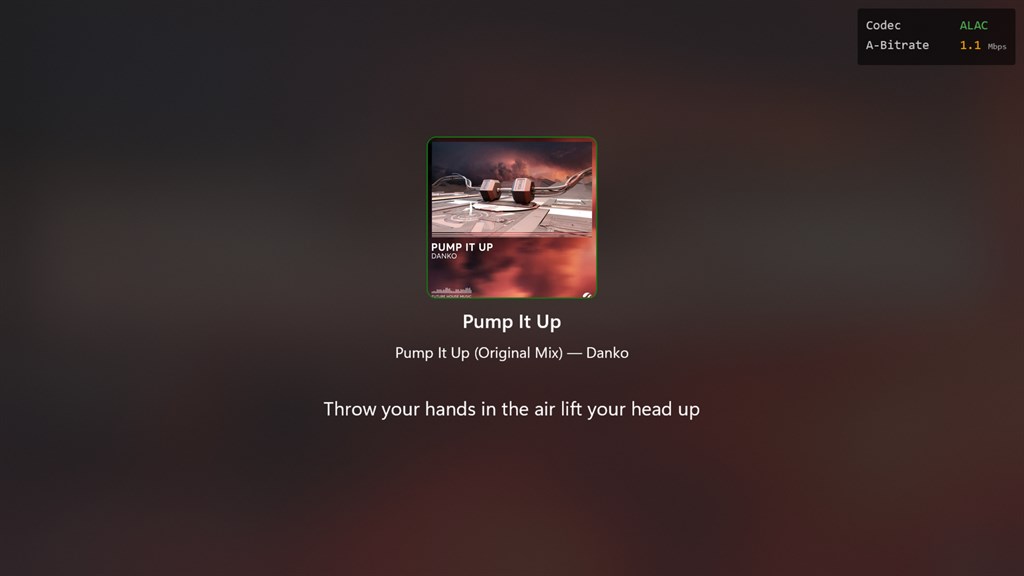
Any device that supports Apple AirPlay — including iPhone, iPad, iPod touch, and Mac. Both screen mirroring and AirPlay audio streams are supported.

支持所有具备 AirPlay 能力的 Apple 设备,包括 iPhone、iPad、iPod touch、Mac,同时支持屏幕镜像和 AirPlay 音频串流。

What resolutions and frame rates are supported? 支持哪些分辨率和帧率?

You can pick from 720p, 1080p, 2K, and 4K, with selectable 30 FPS or 60 FPS — depending on your network and hardware.

可在 720p / 1080p / 2K / 4K 之间选择,并可切换 30 / 60 FPS 帧率,具体取决于你的网络和硬件性能。

Why does mirroring sometimes disconnect on Xbox? 为什么 Xbox 上投屏一段时间后会中断?

When Xbox is connected via Wi-Fi, high mirroring throughput can occasionally cause the system to auto-reset the network adapter, which interrupts the AirPlay session. For best stability we strongly recommend connecting the Xbox to your home LAN with wired Ethernet.

当 Xbox 通过 Wi-Fi 上网时,高吞吐的投屏数据偶尔会触发系统自动重置网络,从而导致投屏中断。为获得最佳稳定性,强烈建议 Xbox 使用网线接入家庭局域网。

Do my iPhone and PC need to be on the same Wi-Fi? iPhone 与电脑是否必须在同一个 Wi-Fi?

Yes. The sending device and the receiver must be on the same local network for AirPlay discovery to work. Mixed Wi-Fi + wired LAN is fine, but cross-subnet or guest networks usually block discovery.

需要。发送端和接收端必须处于同一局域网,AirPlay 才能发现彼此。Wi-Fi 与有线网混合通常没问题,但跨网段或访客网络往往会阻断发现。

Is there an always-on-top floating window? 支持悬浮小窗吗?

Yes. Switch on the floating window mode to keep the mirrored screen pinned above other apps while you work, chat, or browse.

支持。开启悬浮小窗模式后,投屏画面会一直置顶显示,方便你边工作、聊天、浏览边看。

How much does the app cost? 这款应用收费吗?

It's a paid app on the Microsoft Store, with a free trial so you can test it before buying. Final pricing is set by Microsoft Store and varies by country / region — please refer to the Store page for the current price in yours.

这是一款微软商店付费应用,提供免费试用,可先试再买。最终售价由微软商店按国家 / 地区定价,以商店页面显示为准。

Get it from Microsoft Store 在微软商店获取

Available on Windows 10, Windows 11, and Xbox. Free trial available before purchase. 支持 Windows 10、Windows 11 与 Xbox;购买前可先免费试用。